When the intranet reflects the same branding used across other platforms, employees feel more connected to the organization’s mission, values, and visual style. This alignment helps everyone work toward shared goals.
2. Better User Experience
A familiar and consistent design minimizes confusion, making it easier to navigate. Employees quickly recognize patterns, which improves efficiency and allows them to focus on their tasks instead of adapting to different layouts.
3. Stronger Workplace Culture
Embedding company values and culture into the intranet design helps employees feel connected and valued. It strengthens a shared identity across the workplace and inspires people to work in line with the organization’s vision.
Curious how your intranet branding stacks up? Try our DIY Design Tool to preview your own intranet look in minutes.
Consistent branding in updates, announcements, and newsletters makes content more recognizable and engaging. This encourages employees to interact more often with the portal.
Struggling with scattered designs? Explore our ready-to-use intranet templates that bring consistency from day one.
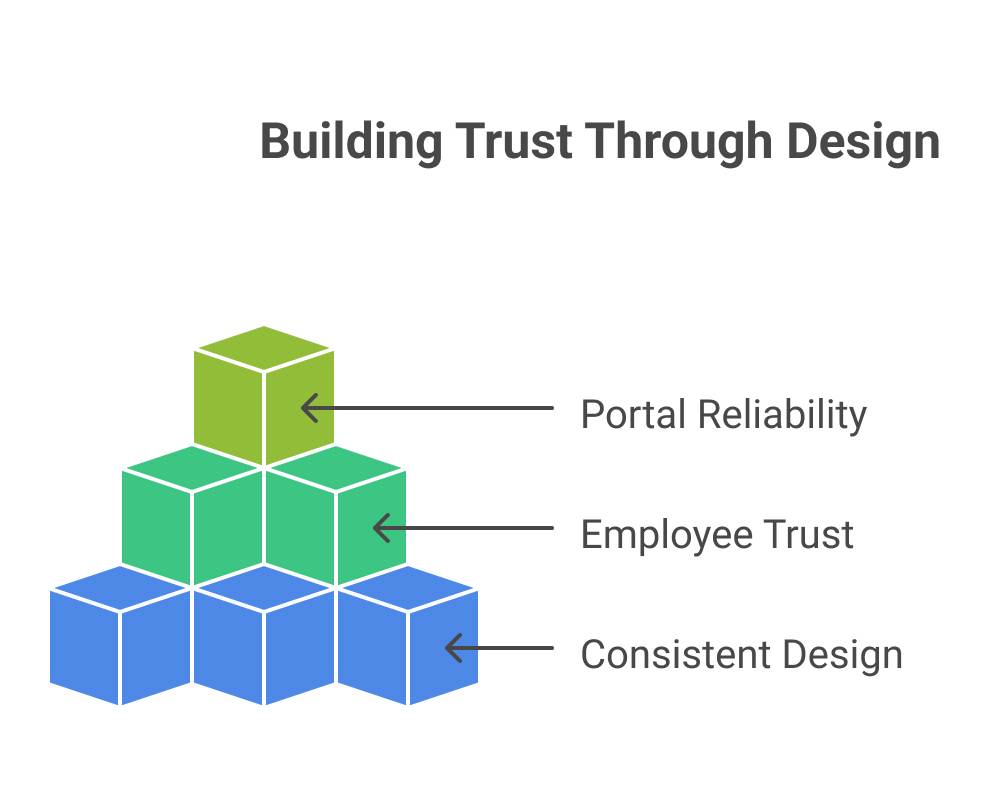
A well-branded design conveys reliability and professionalism. Employees are more likely to trust the portal as their go-to source for accurate information and resources.
6. Higher Adoption Rates
When the portal feels user-friendly and visually consistent, employees are motivated to use it regularly, driving greater adoption and engagement.
7. Scalability for Future Growth
A strong branding framework ensures that as the intranet evolves, new sections or features remain visually cohesive, supporting long-term scalability.
In summary:
Consistent branding within intranet portals not only improves usability but also strengthens company culture, builds trust, and drives ongoing engagement.
Build trust, boost adoption, and scale your intranet the smart way. Let’s design your intranet branding together!
Power Automate SharePoint Services In today’s fast-paced work environment, keeping everyone updated with the latest news and announcements is crucial. With Power Automate, you can streamline the process of creating news posts in SharePoint directly from Outlook emails. This automation saves time and ensures that important information is shared quickly and efficiently. This blog walks you through the steps to set up this efficient integration. What You’ll Need Power Automate: Included with most Microsoft 365 plans for creating automated workflows. SharePoint Site: The destination site where your news articles will be published. Outlook Account : A Microsoft 365 Outlook account to receive emails. Step-by-Step Guide to Create Your Flow Step 1: Set Up the Trigger Begin by signing in to Power Automate and creating a new flow using the "When a new email arrives" trigger from Outlook. You can set specific conditions to filter the emails that will initiate the flo...
SharePoint Services Ever missed a task because you forgot to follow up? SharePoint reminders and alerts make sure that never happens again. Whether you’re tracking project deadlines or document approvals, you can automate it all no coding required! Need help setting up your SharePoint automation? Get a free consultation today If you use SharePoint to manage your projects, documents, or tasks, you’ve probably faced this problem. you forget to follow up on something important until someone reminds you after it’s already late. That’s where automated reminders and alerts come in handy. They do the remembering for you so you can focus on your real work. In this blog, I’ll show you two simple ways to set up alerts and reminders in SharePoint: 1. Using the built-in “Alert Me” option. 2. Creating smart reminders with Power Automate (Flow). And yes, everything here works with SharePoint Online (Microsoft 365). Let’s get sta...
SharePoint Services Introduction SharePoint introduced flexible layout section , within the flexible section we can move the webpart anywhere on the two-dimensional grid , resizing, over lapping and grouping the webparts, this guide covers how to use flexible sections in SharePoint, from adding web parts to customizing layouts for mobile views. How to add flexible section in SharePoint Page Just like adding other sections, click the Section button . This will open the Section toolbox. In the toolbox, you will see the Flexible Section listed first. Click on Flexible to add a Flexible Section to your page. How to add web parts inflexible sections After adding a Flexible Section to your page, web parts cannot be added directly. Instead, you need to drag them from one of the Column Layouts into the Flexible Section, duplicate an existing web part, or use the Toolbox pane . The Toolbox pane, located on the right side, allows you to easily add web pa...




Comments
Post a Comment