Hunting down a document shouldn’t feel like solving a mystery novel.
That’s where Document Library Webparts swoop in like superheroes for your intranet. From sleek slides to smart filters, they don’t just store your files they showcase them in style, keep everything organized, and make searching as easy as scrolling your Insta feed. Whether it’s policies, SOPs, trainings, or your team’s most important docs, there’s a layout here designed to save your time.
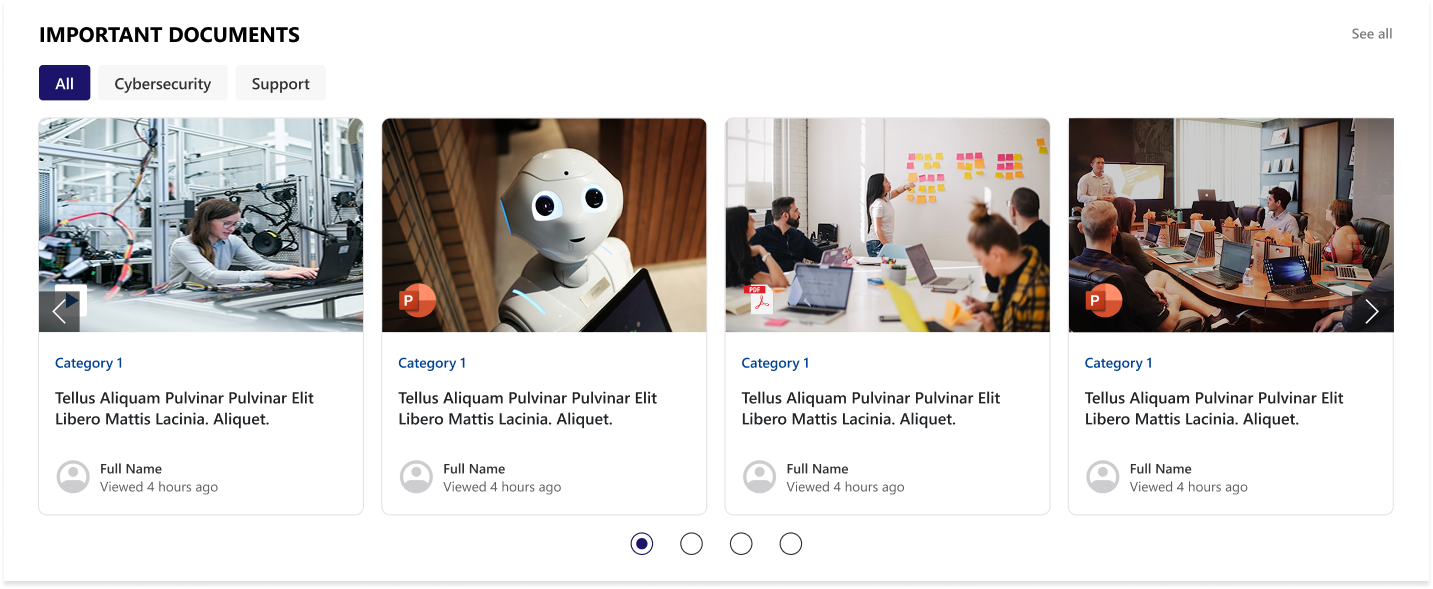
1. Important Documents Library, Your One-Stop Space
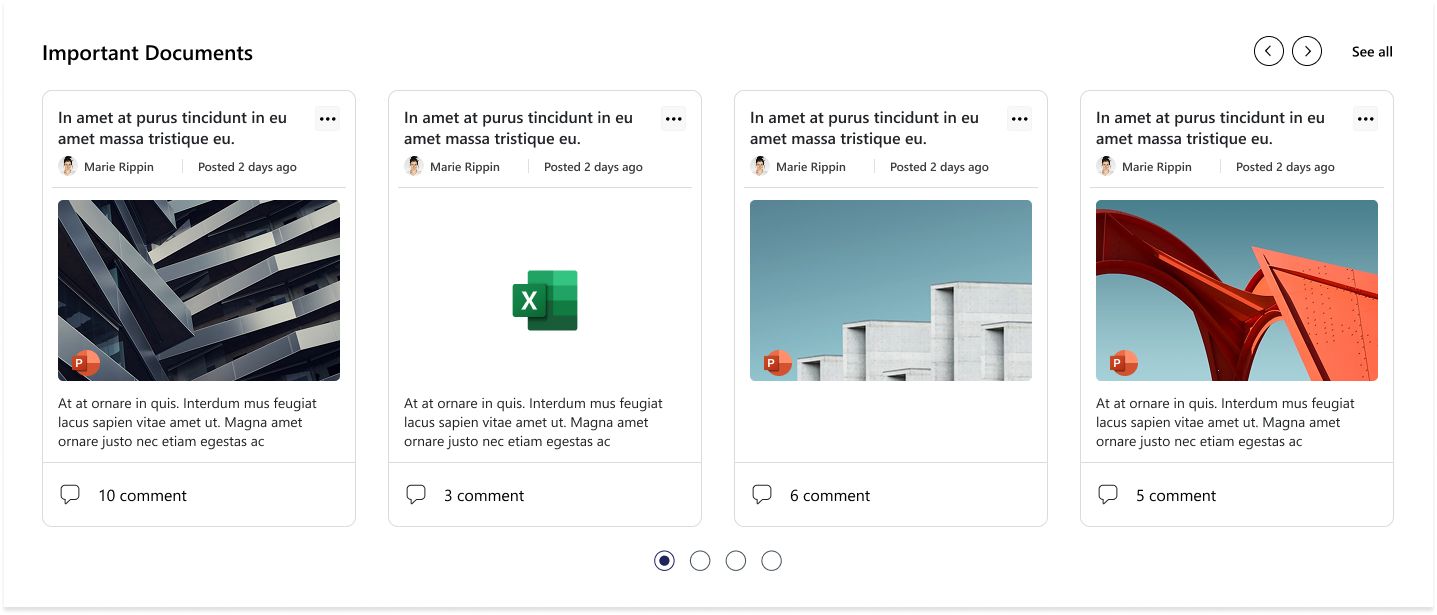
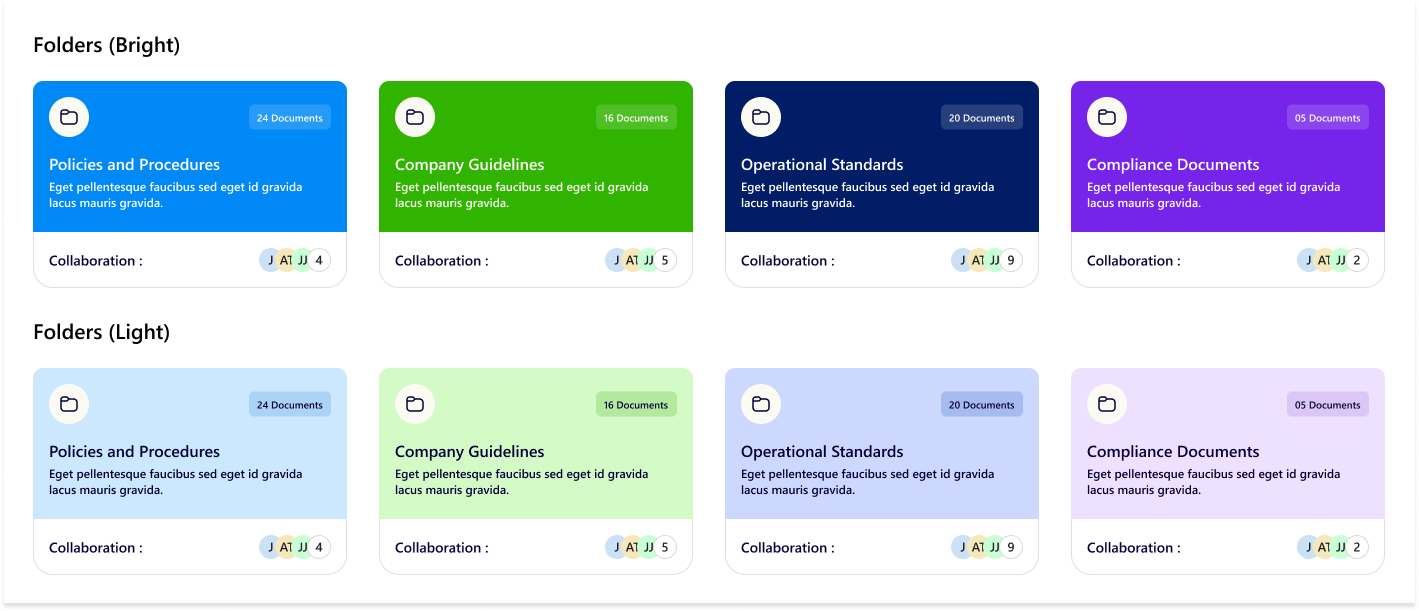
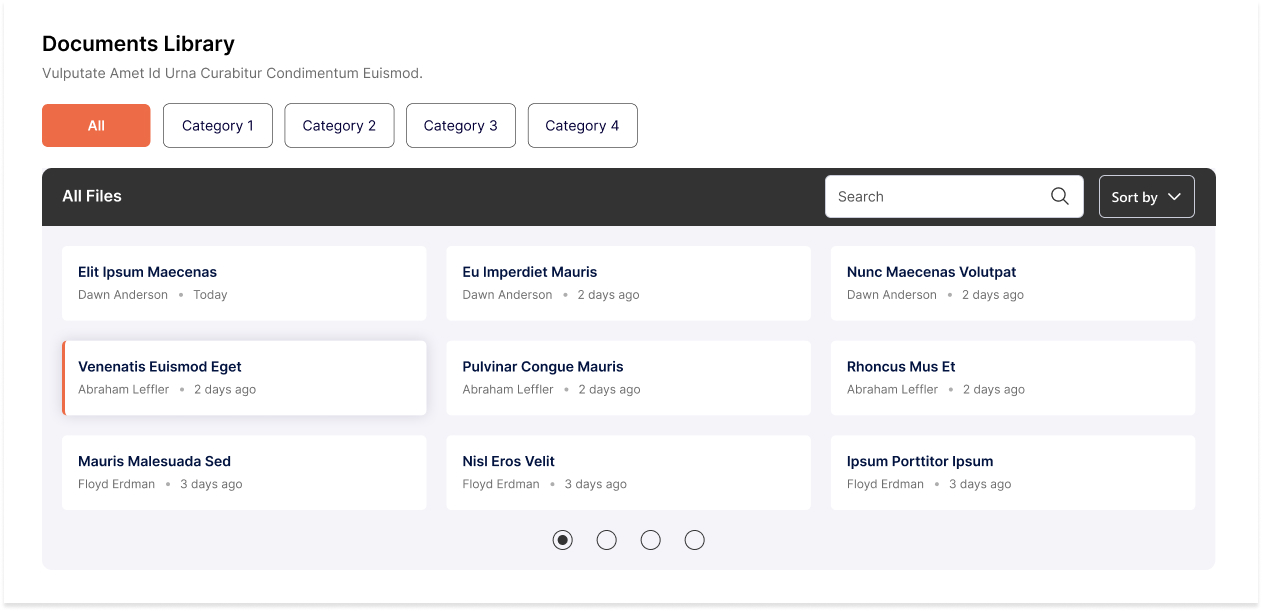
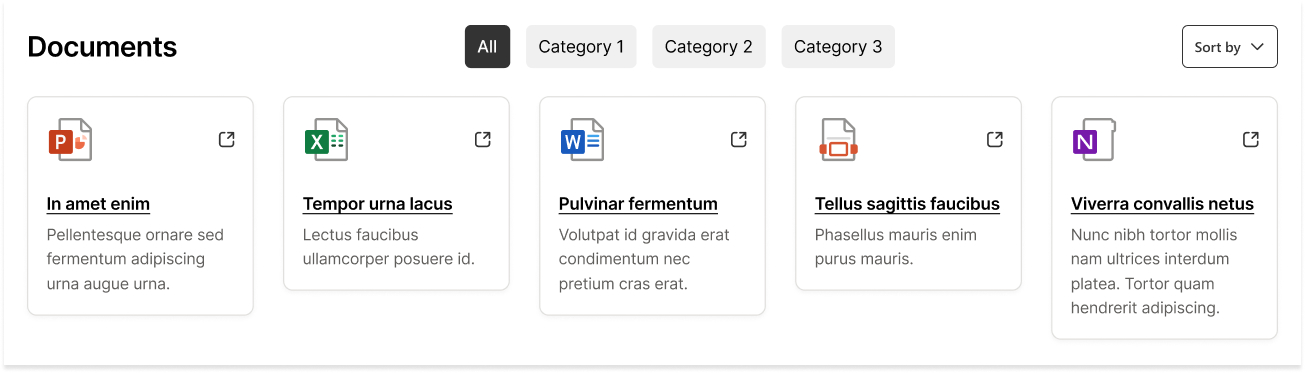
Organized as sleek slides with images, category, title, and short description.
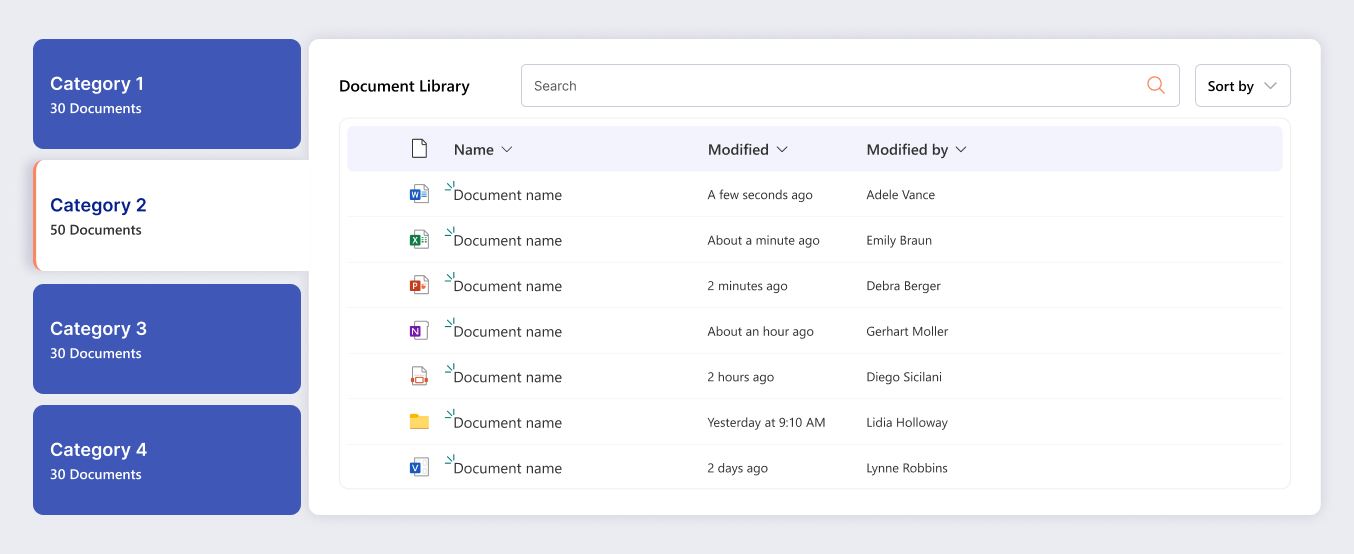
Shows who last viewed the document and how long ago (down to minutes or seconds).
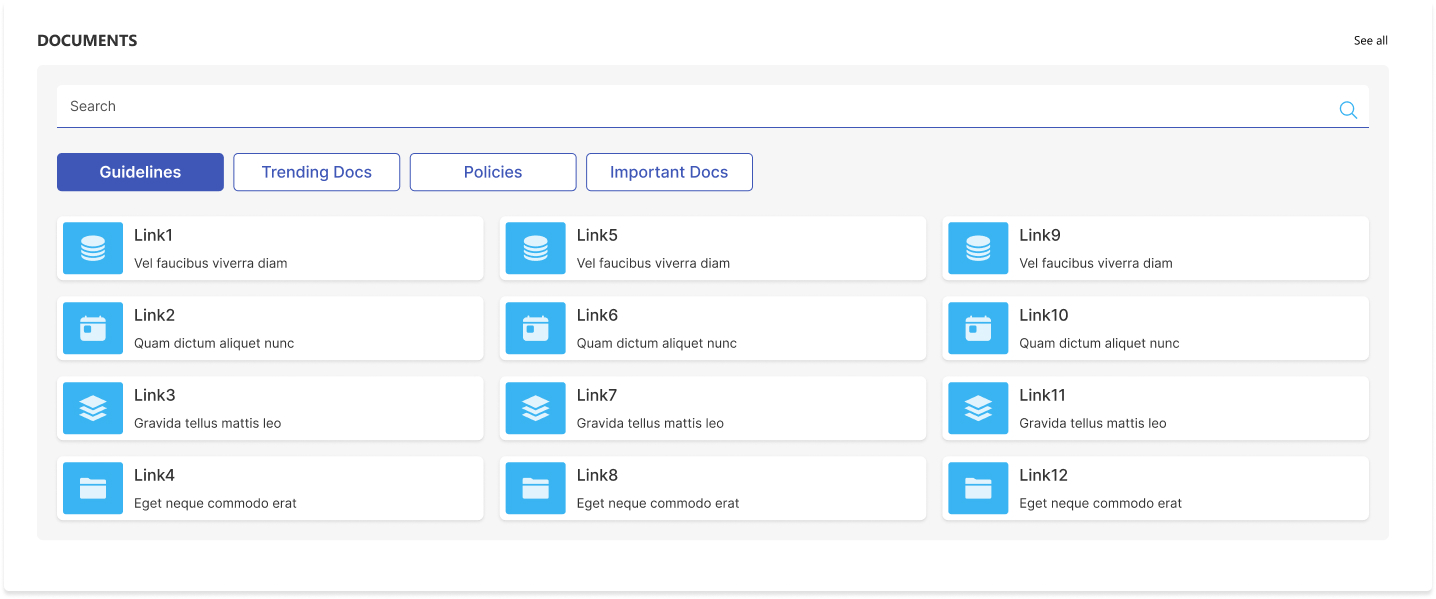
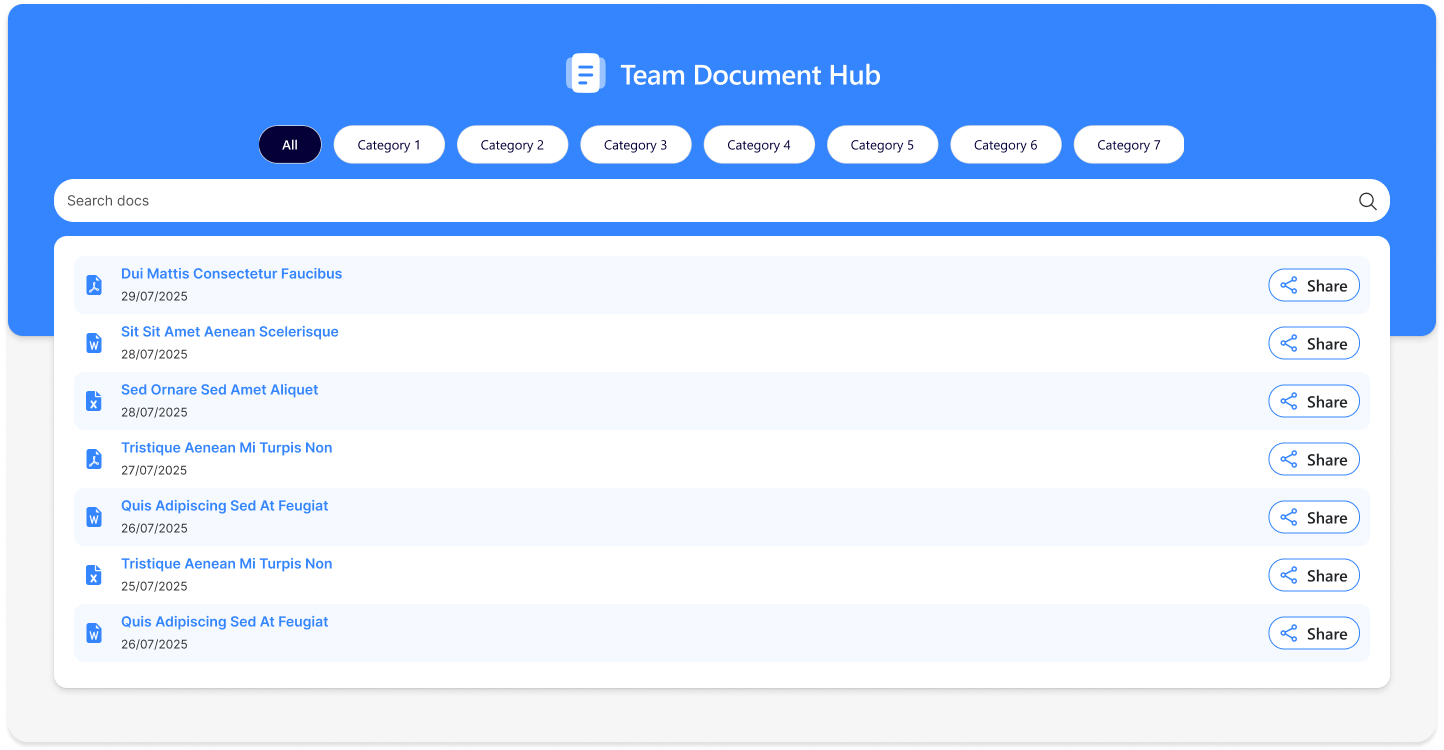
Department tabs below the title for instant filtering.
See All link on the top-right to view the complete library.
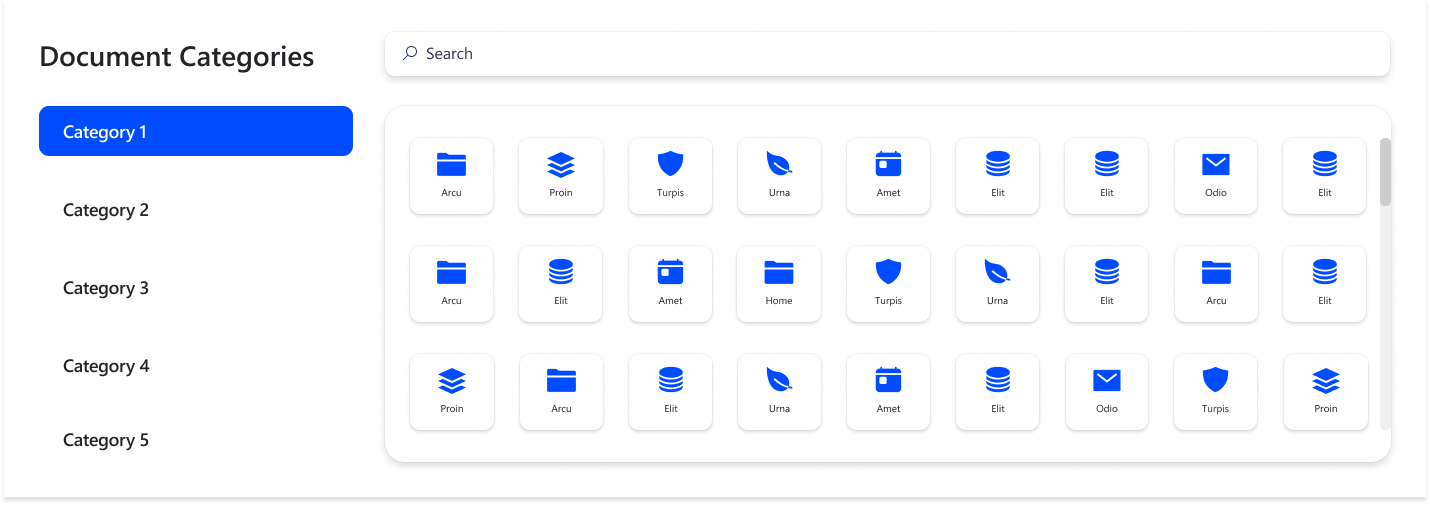
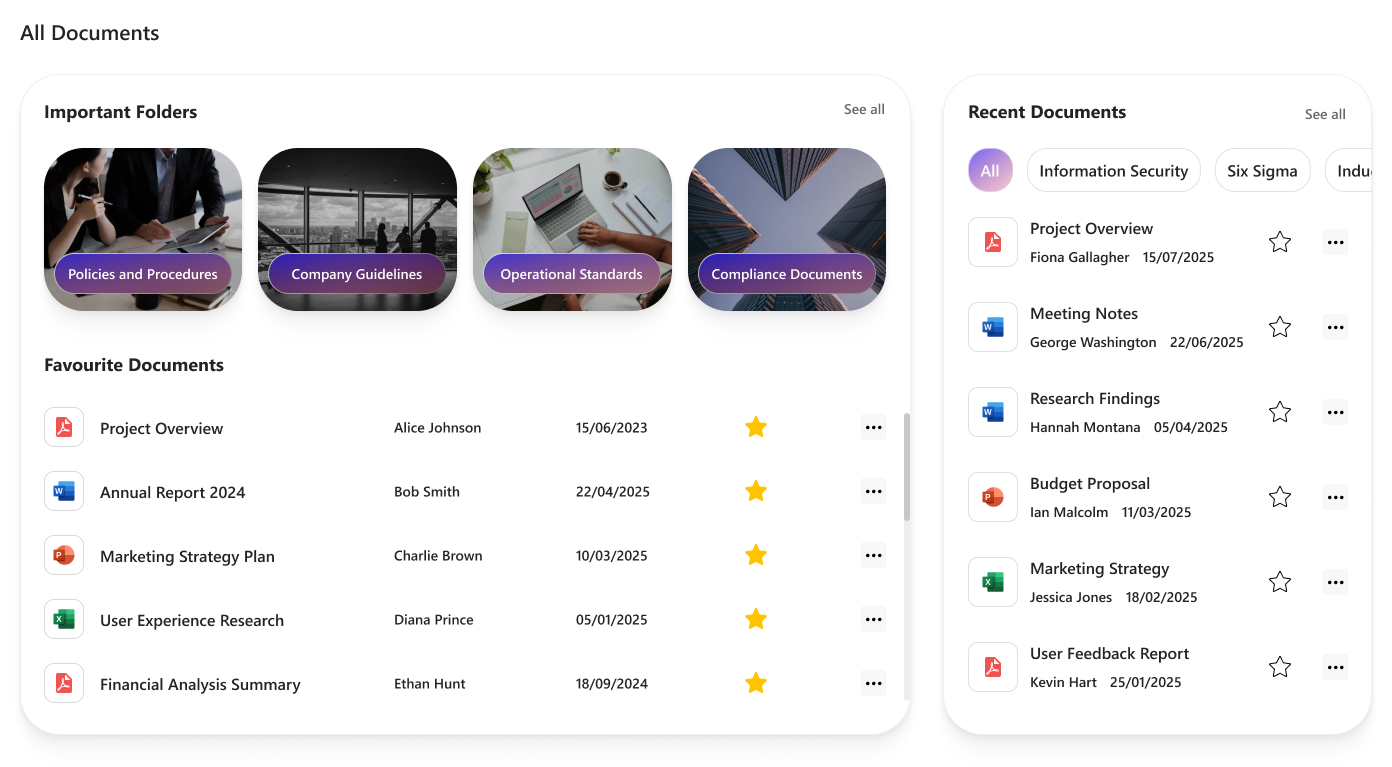
Left section: important folders with image and folder name.
Right section: recent documents with category tabs.
See All links in both sections for full view.
Star icon to mark favorites → instantly appear under folders.
Interactive, dynamic, and personalized.
Conclusion
So, there you have it buffet of document library layouts served fresh and customized for every kind of workplace need. Whether you’re after sleek slides, team hubs, or category-based setups, there’s a design that fits like a glove.
No more “where did I save that file?” moments. With these layouts, your documents are not just stored they’re easy to find, fun to browse, and smart enough to keep up with you.
Ready to upgrade your intranet? Discover Document Library Web Parts that actually work for your team.
Power Automate SharePoint Services In today’s fast-paced work environment, keeping everyone updated with the latest news and announcements is crucial. With Power Automate, you can streamline the process of creating news posts in SharePoint directly from Outlook emails. This automation saves time and ensures that important information is shared quickly and efficiently. This blog walks you through the steps to set up this efficient integration. What You’ll Need Power Automate: Included with most Microsoft 365 plans for creating automated workflows. SharePoint Site: The destination site where your news articles will be published. Outlook Account : A Microsoft 365 Outlook account to receive emails. Step-by-Step Guide to Create Your Flow Step 1: Set Up the Trigger Begin by signing in to Power Automate and creating a new flow using the "When a new email arrives" trigger from Outlook. You can set specific conditions to filter the emails that will initiate the flo...
SharePoint Services Ever missed a task because you forgot to follow up? SharePoint reminders and alerts make sure that never happens again. Whether you’re tracking project deadlines or document approvals, you can automate it all no coding required! Need help setting up your SharePoint automation? Get a free consultation today If you use SharePoint to manage your projects, documents, or tasks, you’ve probably faced this problem. you forget to follow up on something important until someone reminds you after it’s already late. That’s where automated reminders and alerts come in handy. They do the remembering for you so you can focus on your real work. In this blog, I’ll show you two simple ways to set up alerts and reminders in SharePoint: 1. Using the built-in “Alert Me” option. 2. Creating smart reminders with Power Automate (Flow). And yes, everything here works with SharePoint Online (Microsoft 365). Let’s get sta...
SharePoint Services Introduction SharePoint introduced flexible layout section , within the flexible section we can move the webpart anywhere on the two-dimensional grid , resizing, over lapping and grouping the webparts, this guide covers how to use flexible sections in SharePoint, from adding web parts to customizing layouts for mobile views. How to add flexible section in SharePoint Page Just like adding other sections, click the Section button . This will open the Section toolbox. In the toolbox, you will see the Flexible Section listed first. Click on Flexible to add a Flexible Section to your page. How to add web parts inflexible sections After adding a Flexible Section to your page, web parts cannot be added directly. Instead, you need to drag them from one of the Column Layouts into the Flexible Section, duplicate an existing web part, or use the Toolbox pane . The Toolbox pane, located on the right side, allows you to easily add web pa...



Comments
Post a Comment