Connecting SharePoint with Power BI for Data-Driven Dashboards

In today’s digital era, businesses rely on SharePoint for collaboration and data management. However, SharePoint alone cannot provide advanced analytics. By connecting SharePoint with Power BI, organizations can transform static lists and documents into interactive, data-driven dashboards that drive smarter decision-making.
Why Connect SharePoint with Power BI?
Integrating SharePoint and Power BI offers several advantages:
How to Connect SharePoint with Power BI
1. Connect SharePoint Lists to Power BI
SharePoint lists often hold structured project or business data.
Steps to connect:
1. Open Power BI Desktop → Get Data.
2. Select SharePoint Online List.
3. Enter your SharePoint site URL (e.g., https://company.sharepoint.com/sites/project).
4. Sign in with organizational credentials.
5. Load the required lists into Power BI.
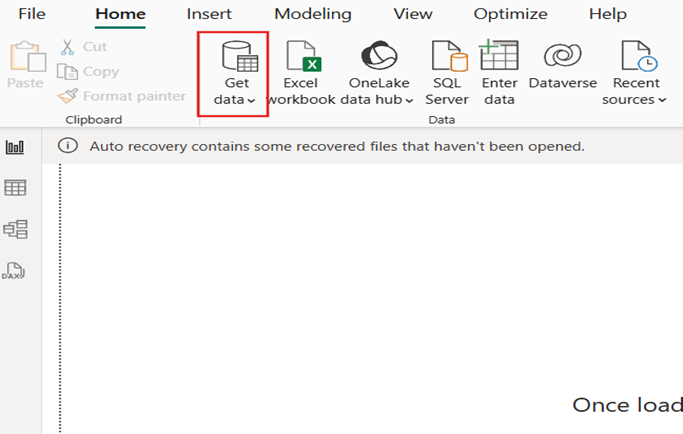
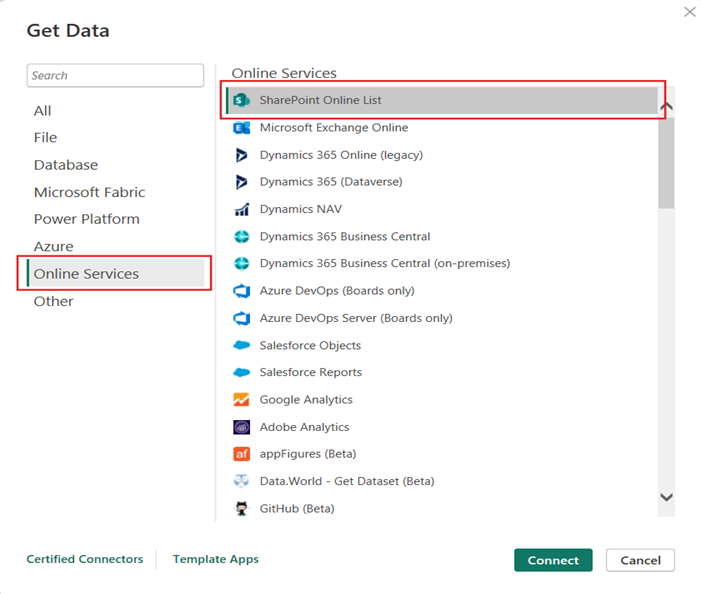
Best for: task management, issue tracking, and HR records.
2. Connect SharePoint Document Libraries (Excel, CSV)
If data is stored in SharePoint libraries (e.g., Excel or CSV files):
1. Copy the file or library URL.
2. In Power BI, choose Get Data → Web.
3. Paste the direct file link (make sure it ends with .xlsx or .csv).
4. Authenticate and load data.
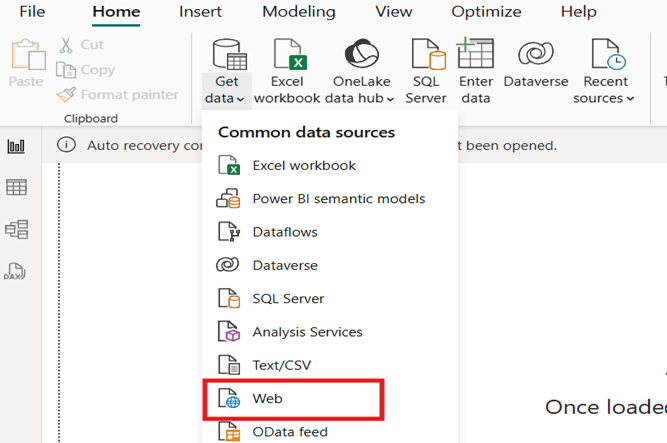

Best for: reports, KPIs, and financial data stored in Excel.
3. Automate Data Refresh in Power BI Service
After publishing your report:
This ensures your dashboards always display the latest SharePoint data.


Best Practices for Power BI and SharePoint Integration
Real-World Use Cases
Conclusion
Connecting SharePoint with Power BI empowers businesses to turn everyday data into actionable insights. Whether for project tracking, HR analytics, or operations, this integration helps teams make data-driven decisions faster and smarter.
Related Blogs:
A guide to embed Power BI report in SharePoint


Comments
Post a Comment