Celebrations are the heartbeat of workplace culture.
Whether it’s a birthday, a work anniversary, or simply welcoming a new colleague, these moments create opportunities to connect, appreciate, and build stronger bonds across teams. But in busy workplaces, it’s easy to let these special days slip by unnoticed.
That’s where Celebration Web Parts come in bringing birthdays, anniversaries, and milestones right onto your intranet. With simple, elegant, and engaging designs, they make it effortless to recognize your people and spread positivity with just one click.
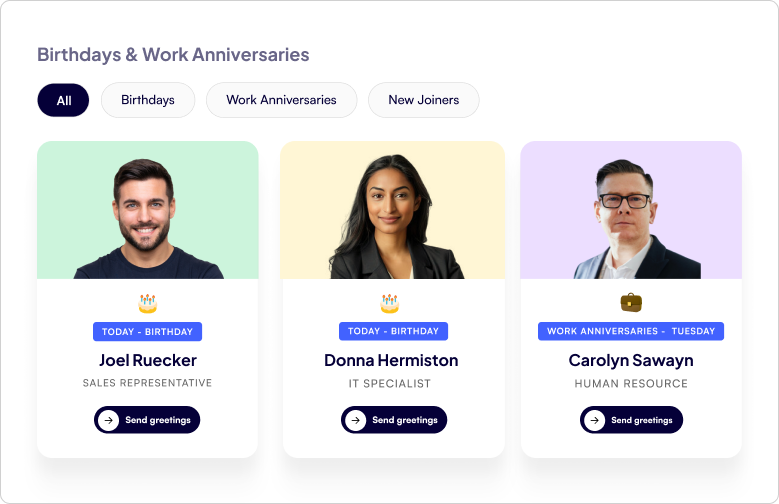
All-in-One Celebrations Web Part
Web Part Title at the Top Left - A clear, customizable title so employees instantly know what the section is about.
Tabbed Navigation - Switch effortlessly between Birthdays, Work Anniversaries, and New Joiners with dedicated tabs.
Employee Cards in a Clean Box Layout - Each person being celebrated gets their own spotlight in a beautifully organized card.
Profile Image - Displays the employee’s photo to make celebrations more personal and recognizable.
Celebration Type - Clearly shows whether it’s a Birthday, Work Anniversary, or a New Joiner being introduced.
Employee Details - Includes the employee’s name and designation, giving context and recognition.
Send Greeting Button - A one-click “Send Greeting” button that directly opens Outlook, allowing colleagues to instantly send warm wishes or a welcome note.
Celebrations in a Vertical View
Web Part Title on Top - A clear heading that immediately tells you what the section is about.
Vertical List Layout - All employees celebrating a Birthday or Work Anniversary are neatly displayed in a vertical order.
Profile Picture on the Left - Each employee’s photo is placed on the left for quick recognition.
Employee Information in the Center 1. Displays the name and designation for context. 2. Includes a Send Greeting button that opens Outlook so you can instantly share wishes.
Date on the Right - Clearly shows the date of the birthday or work anniversary, so you never miss a celebration.
Need expert guidance on designing your SharePoint intranet?
Honoring Loyalty with the Work Anniversaries Web Part
Clear Title on Top - The section is neatly labeled “Work Anniversaries”, so employees instantly know what’s being celebrated.
Employee Spotlight Card - Each team member celebrating a milestone is showcased in an elegant card layout.
Includes the employee’s name and designation for quick recognition.
Personalized Milestone Message - A celebratory message highlights the number of years completed, making recognition feel meaningful and tailored.
Emojis and fun visuals add an extra touch of warmth.
Profile Image - A professional photo puts the spotlight directly on the employee being celebrated.
Easy Navigation - Left and right navigation arrows allow you to scroll through multiple anniversaries without missing anyone.
Send Greetings Button - With just one click, the Send Greetings button opens Outlook so colleagues can share personal wishes instantly.
Simple & Elegant Birthday Web Part
Employee Card Design - Each birthday star is highlighted in a clean, minimal card layout.
Includes the employee’s profile photo, name, and designation for instant recognition.
Personalized Greeting - A warm “Happy Birthday!” message is displayed prominently to make the employee feel special.
Send Greetings Button - A bright “Send Greetings” button lets colleagues quickly send wishes through Outlook with just one click.
Simple Yet Impactful Layout - The design is elegant and focused, ensuring the employee is at the center of attention.
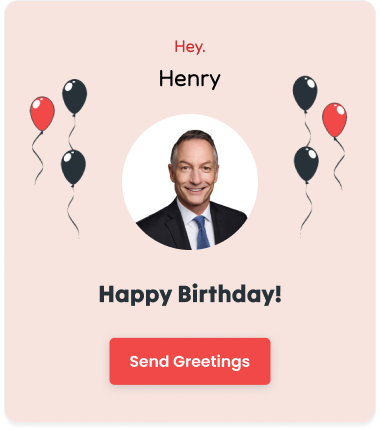
A Fun & Festive Birthday Web Part
Personalized Employee Highlight 1. Features the employee’s name and profile photo in a central, easy-to-spot card. 2. A warm “Hey” greeting adds a friendly, personal touch.
Festive Design Elements 1. Fun balloon graphics frame the layout, instantly giving a celebratory vibe. 2. A soft background color keeps the design light and engaging.
Bold Birthday Message: The “Happy Birthday!” message is highlighted prominently, ensuring the employee feels recognized.
Send Greetings Button: A bright “Send Greetings” button allows colleagues to quickly open Outlook and send personal wishes.
Boost engagement and appreciation across your organization
Profile Image - A clear portrait of Shameera with a confident smile. Maintains a professional yet approachable feel.
Occasion Tag (Top-right - “Tomorrow”) - Indicates a special occasion (likely birthday/anniversary) happening the next day.
Helps teammates prepare greetings in advance.
Navigation Icon (→) - Allows users to browse to the next profile. Enhances interaction and user engagement.
Name & Designation - Bold and prominent ("Shameera Chandramouli"). Designation Displayed as UIUX Designer, immediately clarifying her role.
Bright green block at the bottom separates text details from the photo. Improves readability and creates visual balance.
Send Greetings Button (Black) - Call-to-action with contrasting black color for emphasis.
Positioned centrally for easy access.
Rounded Card Design - Rounded corners add a modern and friendly design aesthetic.
Makes the card visually softer compared to sharp-edged layouts.
Employee Celebration Card
Profile Image - A professional headshot of Alan Mathews, smiling confidently in formal attire. It builds a personal connection and makes the card visually engaging.
Navigation Icon (→)
A circular arrow button that suggests there are more profiles to view. Encourages interaction and browsing through other team members’ cards.
Name & Designation - Bold and centered ("ALAN MATHEWS") for instant identification. Designation Clearly stated as HR Assistant to highlight his role.
Location - Displays "United States" to indicate the work location. Useful in global teams where employees are spread across regions.
Send Greetings Button (Green) - Call-to-action (CTA) button with text "Send Greetings".
Bright green color attracts attention and emphasizes positivity. Encourages colleagues to send birthday/work anniversary wishes.
Decorative Elements - Small colorful icons and greeting card graphics add a celebratory vibe.
Creates a friendly and engaging design beyond just professional details.
Conclusion
Celebrating people should never be an afterthought. With these beautifully designed Web Parts whether it’s for birthdays, work anniversaries, or welcoming new joiners you can bring a touch of joy, recognition, and connection right into your intranet.
From simple and elegant layouts to festive, colorful designs, each Web Part offers its own unique way to make employees feel valued. And with features like one-click greetings through Outlook, celebrating milestones becomes effortless for everyone.
Because at the end of the day, it’s not just about dates on a calendar it’s about creating a culture of appreciation where every milestone counts.
Power Automate SharePoint Services In today’s fast-paced work environment, keeping everyone updated with the latest news and announcements is crucial. With Power Automate, you can streamline the process of creating news posts in SharePoint directly from Outlook emails. This automation saves time and ensures that important information is shared quickly and efficiently. This blog walks you through the steps to set up this efficient integration. What You’ll Need Power Automate: Included with most Microsoft 365 plans for creating automated workflows. SharePoint Site: The destination site where your news articles will be published. Outlook Account : A Microsoft 365 Outlook account to receive emails. Step-by-Step Guide to Create Your Flow Step 1: Set Up the Trigger Begin by signing in to Power Automate and creating a new flow using the "When a new email arrives" trigger from Outlook. You can set specific conditions to filter the emails that will initiate the flo...
SharePoint Services Ever missed a task because you forgot to follow up? SharePoint reminders and alerts make sure that never happens again. Whether you’re tracking project deadlines or document approvals, you can automate it all no coding required! Need help setting up your SharePoint automation? Get a free consultation today If you use SharePoint to manage your projects, documents, or tasks, you’ve probably faced this problem. you forget to follow up on something important until someone reminds you after it’s already late. That’s where automated reminders and alerts come in handy. They do the remembering for you so you can focus on your real work. In this blog, I’ll show you two simple ways to set up alerts and reminders in SharePoint: 1. Using the built-in “Alert Me” option. 2. Creating smart reminders with Power Automate (Flow). And yes, everything here works with SharePoint Online (Microsoft 365). Let’s get sta...
SharePoint Services Introduction SharePoint introduced flexible layout section , within the flexible section we can move the webpart anywhere on the two-dimensional grid , resizing, over lapping and grouping the webparts, this guide covers how to use flexible sections in SharePoint, from adding web parts to customizing layouts for mobile views. How to add flexible section in SharePoint Page Just like adding other sections, click the Section button . This will open the Section toolbox. In the toolbox, you will see the Flexible Section listed first. Click on Flexible to add a Flexible Section to your page. How to add web parts inflexible sections After adding a Flexible Section to your page, web parts cannot be added directly. Instead, you need to drag them from one of the Column Layouts into the Flexible Section, duplicate an existing web part, or use the Toolbox pane . The Toolbox pane, located on the right side, allows you to easily add web pa...





Comments
Post a Comment