Integrate SharePoint with Microsoft Teams for Seamless Collaboration

Microsoft 365 brings together two powerful platforms for teamwork SharePoint Online and Microsoft Teams. SharePoint provides a secure place to store, organize, and manage content, while Teams enables real-time communication and collaboration. By integrating a new SharePoint site with Teams, organizations can provide employees with a unified hub where conversations, files, and resources live together.
In this blog, we’ll walk through the steps to integrate a new SharePoint site with Microsoft Teams and highlight best practices for seamless collaboration.
Steps to Integrate a SharePoint Site with Microsoft Teams
Step 1: Create a New SharePoint Site
1. Check out this blog for creating a SharePoint site.
(or)
2. Navigate to the SharePoint Admin Center (or directly via the SharePoint home page).
3. Click Create site.

4. Choose the Communication site template (recommended for collaboration).
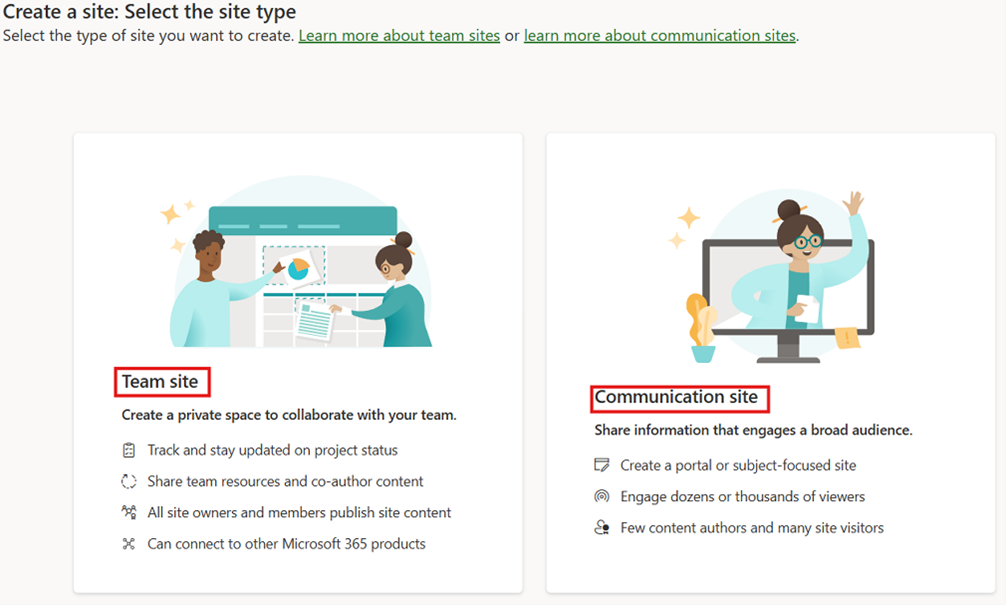
5. Enter site name, owners.
6. Once created, your site will have its own document library, lists, and permissions.
Note: Use clear and consistent naming conventions so the site is easily recognizable in Teams.
Step 2: Connect the SharePoint Site to Microsoft Teams
You can link your existing SharePoint site to a new or existing Teams channel.
Option A: Add a SharePoint Site to Teams (opens directly within Teams)
1. In Teams, go to your desired team and channel.

2. Click + (Add a tab).

3. Select SharePoint.
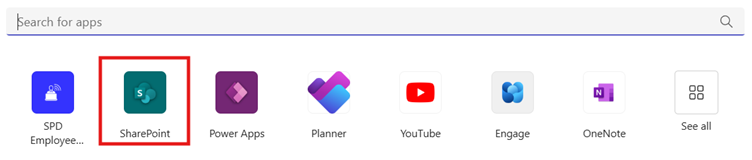
4. Select Any SharePoint site and paste the SharePoint site link in the text box.
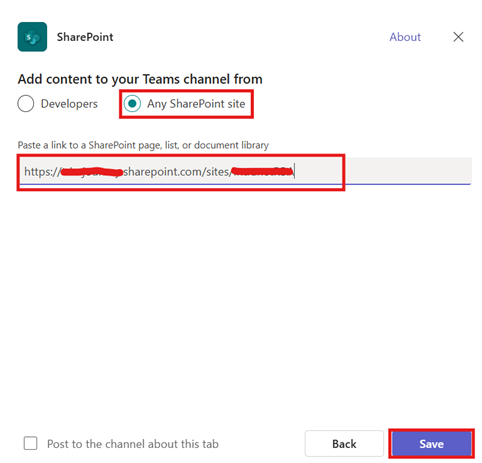
5. Click Save to add it as a new tab.

This allows members to interact with SharePoint pages (like dashboards or news pages) without leaving Teams.
Option B: Add SharePoint Site as a Website Tab (opens in a new browser tab)
If you want to link the entire SharePoint site:
1. Go to the desired team channel in Teams.
2. Click + (Add a tab).
3. Search for Website.

4. Paste your SharePoint site URL.
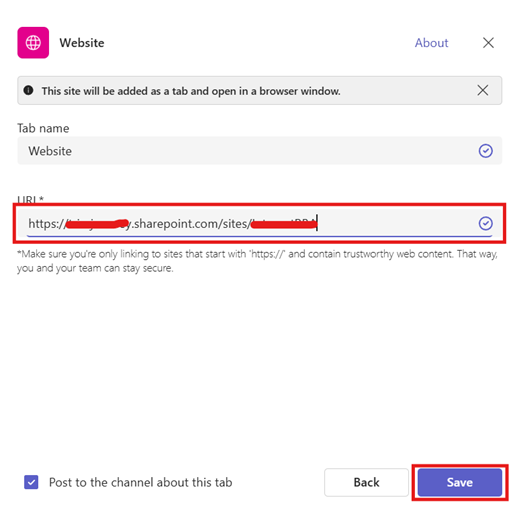
5. Click Save to add it as a new tab.

Step 3: Manage Permissions Effectively
Teams and SharePoint permissions are linked:
Conclusion
Integrating SharePoint with Microsoft Teams bridges the gap between structured content management and fluid team communication. By connecting your new SharePoint site into Teams, you create a single hub for collaboration where users can chat, share, and co-author documents all without switching between apps.
Related Blogs
How to Create a SharePoint Site: Step-by-Step Guide
Explore the Best SharePoint Intranet Examples: 16 Practical Applications


Comments
Post a Comment