How to Change Classic SharePoint to Modern SharePoint (An Updated Guide)
Why Modernize?
The modern SharePoint experience is responsive, faster, mobile-friendly, and supports modern web parts, improved search, and Microsoft 365 integrations.
You can modernize in-place (convert pages, enable modern lists and libraries) or create a new modern site and migrate content both approaches are valid depending on your customizations and risk appetite.
Approaches to Modernization
1. In-place modernization
Keep the same site, convert pages, and enable modern lists/libraries. Best if you want minimal URL change or have few subsites.
2. New modern site + migrate
Create a modern Communication or Team site and migrate content. Recommended for sites with heavy customizations, custom master pages, or complex navigation.
3. Hybrid approach
Modernize some sites in-place and create new modern sites for others. Copy content as needed.
Note: Always plan, inventory, and back up before touching production. Modernization modifies pages and layouts test in a dev or staging environment first.
Pre-Migration Checklist
Before modernizing, make sure you:
• Take an inventory of classic pages, publishing features, custom master pages, custom web parts, JSLink/CSR usage, and classic lists or forms.
• Backup your site collections and libraries.
• Identify pages and libraries that can be converted versus those that may need re-creation.
• Inform users about changes to reduce disruption.
Step 1: Enable Modern Experience for Lists and Libraries
1. Navigate to the list or library settings.
2. Under Advanced settings, ensure “List experience” is set to New experience.

Some site collections have the modern experience disabled by default. To enable globally using SharePoint Admin Center:
• Go to Settings → SharePoint → Classic settings page → Site Creation

• Select New experience and save.

Step 2: Convert Classic Pages to Modern Pages
For converting publishing or wiki pages to modern pages, Microsoft recommends PnP PowerShell:
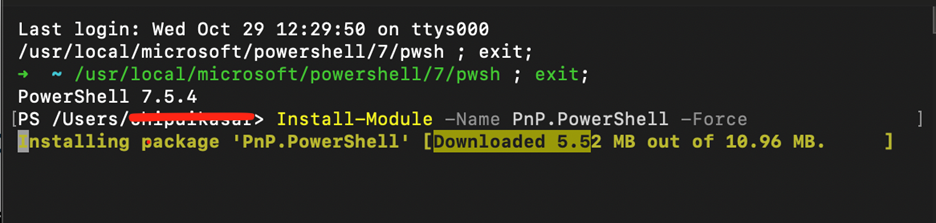
1. Install PnP PowerShell (if not already installed):
Install-Module -Name PnP.PowerShell -Force
Install-Module PnP.PowerShell -Force -AllowClobber
2. Connect to your SharePoint:
If your organization requires an Entra ID (for admins)
a. Register an app in Entra ID.
b. Grant it delegated permissions:
Sites.ReadWrite.All, User.Read, Group.Read.All
Connect-PnPOnline -Url "https://yourtenant.sharepoint.com/sites/yoursite" -ClientId “<app-client-id>” -Interactive
3. Convert a classic page to modern:
ConvertTo-PnPPage -Identity "ClassicPage.aspx" -Publish
• Replace "ClassicPage.aspx" with the actual page name.
• Publish ensures the page is published immediately after conversion.
Tip: Test the conversion on a few pages first. Some heavily customized web parts may not convert perfectly and might need manual recreation.
Step 3: Update Navigation and Branding
• Modern sites use the mega menu and hub navigation.
• Re-create top navigation in the modern navigation panel.
• Avoid custom master pages; modern sites use default modern layouts.
• For branding, use site themes instead of manually injecting CSS.
Step 4: Modernize Classic Lists, Libraries, and Forms
• Convert classic lists to modern forms using Power Apps if needed.
• Enable modern document libraries and view formatting for custom columns.
• Avoid JSLink; use column formatting JSON in modern lists.
Step 5: Test and Roll Out
1. Verify that pages render correctly on desktop and mobile.
2. Ensure permissions, workflows, and alerts continue to work.
3. Communicate to end-users about modern features and training.
4. Gradually migrate remaining classic pages.
Useful References
Microsoft Docs: Modernize classic SharePoint pages
PnP PowerShell: ConvertTo-PnPPage
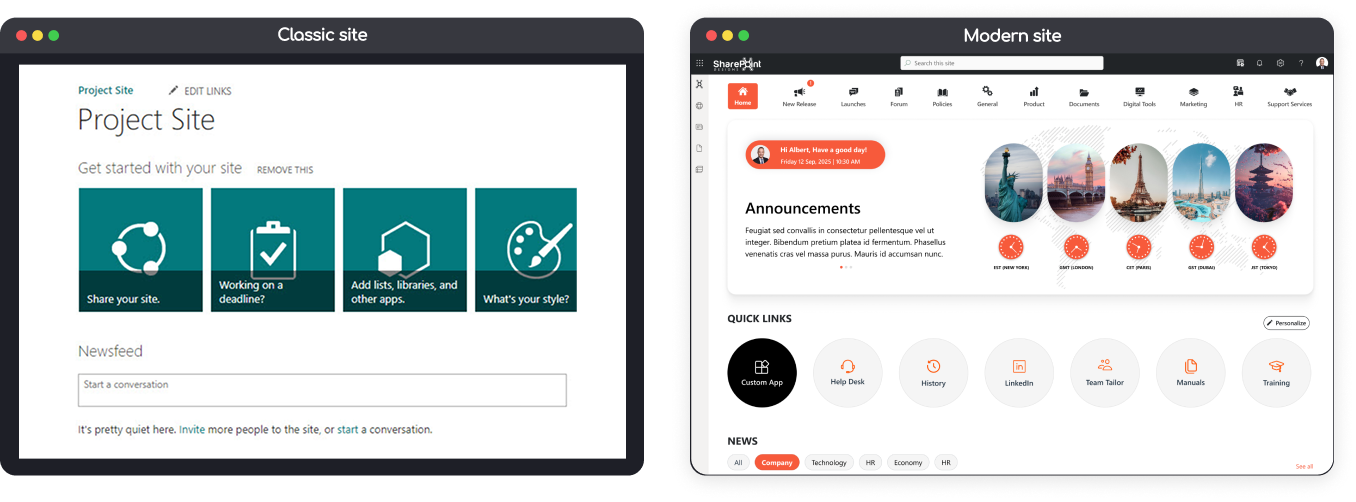
Classic SharePoint Vs Modern Site
Key Takeaways
• Modern SharePoint improves performance, usability, and integration with Microsoft 365.
• Always backup and test before migration.
• Use PnP PowerShell for safe page conversion.
• Avoid custom master pages; rely on themes and modern layouts.


Comments
Post a Comment